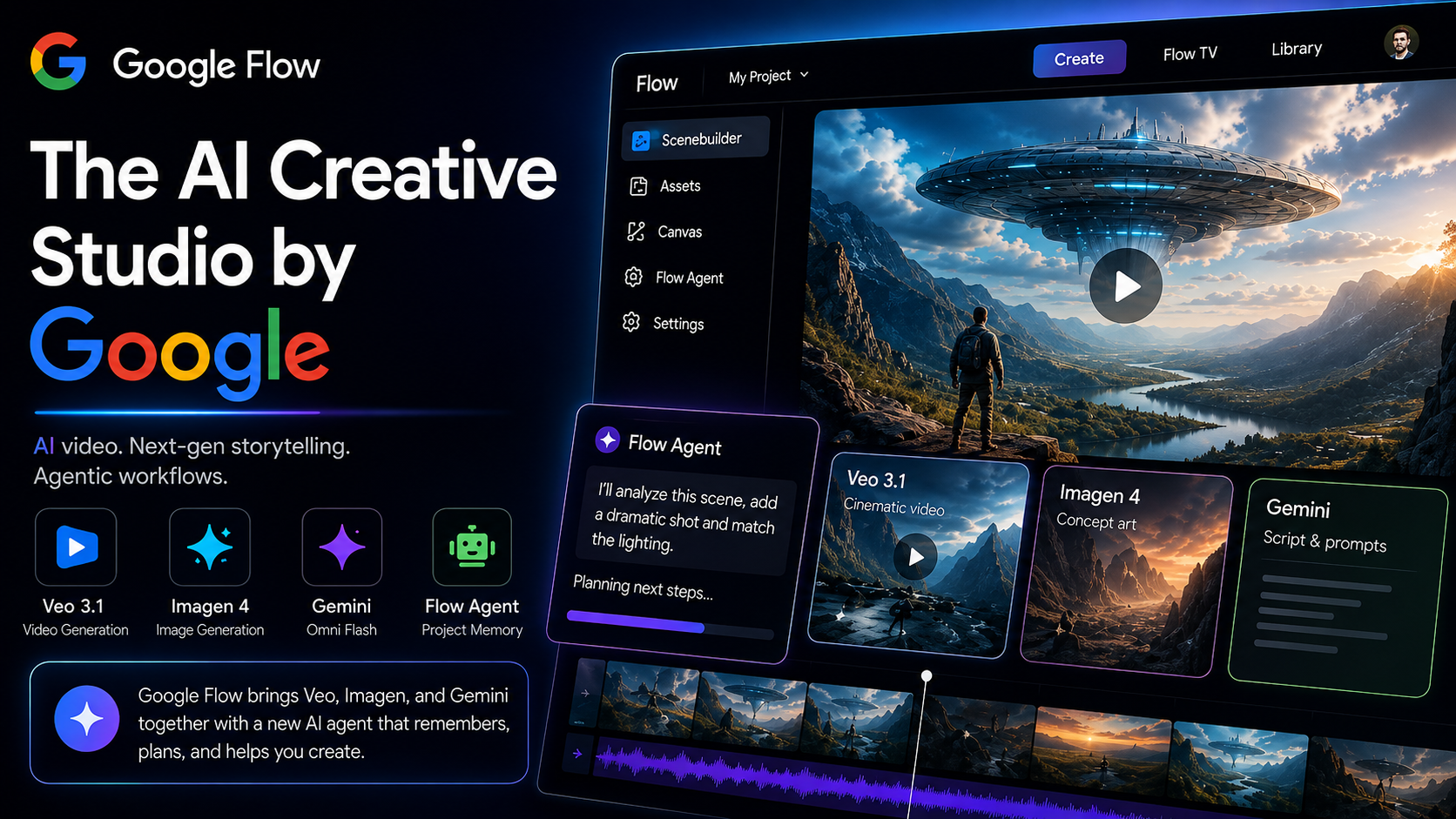
Google Flow is an AI filmmaking tool from Google designed to help users create videos, scenes, images, and visual stories with generative AI. It brings Google’s generative models into a workflow aimed at people who want to create cinematic content without traditional video-production software.
If you’re completely new to AI video generation, Flow can look complicated at first. The good news is that you don’t need professional filmmaking experience to get started.
This guide explains what Google Flow is, how to use it, whether it is free, how its credits work, which features beginners should try first, and what you should know before paying for a subscription.
What Is Google Flow AI?
Google Flow is Google’s AI-powered creative studio for creating video and visual content.
It can generate content from text prompts and can also work with images and other references. Google describes Flow as a tool for creating cinematic clips, scenes, and stories using its generative AI models.
Some of the main creation options include:
- Text to video
- Frames to video
- Ingredients to video
- Text to image
- Image to image
- Video extension
- Video editing
- Scene building
- Character creation
- AI avatars
- Image and video upscaling
The exact features and available models can vary depending on your account and subscription.
For beginners, the easiest place to start is text-to-video.
Is Google Flow Free?
Yes, Google Flow currently offers a free way to try the service.
Users without a Google AI Plus, Pro, or Ultra subscription can receive 50 Google Flow credits per day at no charge. These free credits can be used for selected Veo 3.1 generations.
However, “free” does not mean unlimited video generation.
Flow uses a credit system. Different models and generation types consume different numbers of credits.
For example, Google’s current documentation lists these costs:
| Model | Typical generation | Credits |
| Veo 3.1 Lite | 4, 6 or 8 seconds | 10 |
| Veo 3.1 Fast | 4, 6 or 8 seconds | 20 |
| Veo 3.1 Quality | 8 seconds | 100 |
| Gemini Omni Flash | 4 seconds | 15 |
| Gemini Omni Flash | 6 seconds | 20 |
| Gemini Omni Flash | 8 seconds | 25 |
| Gemini Omni Flash | 10 seconds | 30 |
These are per generation, not necessarily per request. A single request can sometimes create multiple generations. Google also notes that credit costs can change, so users should check the model information inside Flow before generating.
That means a beginner can experiment without immediately paying, but frequent video creation will require more credits.
How to Start Using Google Flow
Before opening Flow, make sure your Google account meets the current eligibility requirements.
Google says Flow users must be at least 18 years old, have age verification completed, and be located in a supported region. Availability can vary by country.
Step 1: Open Google Flow
Open Google Flow using a Chromium-based browser such as Google Chrome or Microsoft Edge.
Google recommends using Flow on a desktop computer for the best experience, particularly when using its more advanced editing features.
Step 2: Sign in
Sign in with your Google account.
If your account has access, you’ll be able to enter the Flow workspace and start creating.
If Flow isn’t available for your account or region, you may see an access or eligibility message.
Step 3: Create a Project
Start a new project.
Think of a project as the workspace for a video or visual story. You can create multiple assets and organize them inside the same project.
Don’t worry about making your first project perfect.
For your first experiment, create something simple.
Step 4: Enter a Prompt
The prompt tells Flow what you want to create.
A weak prompt might look like:
A man walking in a city.
That’s understandable, but it doesn’t give the model much creative direction.
A stronger prompt could be:
A young traveler walking through a busy Tokyo street at night, neon signs reflecting on wet pavement, cinematic camera movement, realistic lighting, shallow depth of field, atmospheric mood.
The second prompt gives Flow information about the subject, location, lighting, camera style, and atmosphere.
Step 5: Choose Your Model
Flow provides different models and generation options.
The model you choose affects the quality, speed, available features, and number of credits required.
If you’re experimenting for the first time, start with a lower-cost option rather than immediately using the most expensive generation.
This lets you learn how prompting works without burning through your credits.
Step 6: Generate the Video
Submit your prompt and wait for Flow to generate the result.
AI video generation can produce different results from what you imagined. That’s normal.
If the first result isn’t right, don’t immediately rewrite the entire prompt.
Change one thing at a time.
For example:
- Change the camera movement.
- Change the lighting.
- Change the character’s action.
- Make the scene more realistic.
- Specify the camera angle.
- Remove unnecessary details.
This makes it easier to understand which instruction affected the result.
How to Write Better Google Flow Prompts
Good prompting is one of the biggest factors in getting useful results.
A simple structure is:
Subject + action + environment + camera + lighting + visual style
For example:
A futuristic sports car driving through a rainy city at night, reflections on the road, low-angle tracking shot, realistic headlights, cinematic lighting, detailed environment, smooth camera movement.
You don’t need to use exactly this structure every time, but it gives beginners a useful starting point.
Describe Movement Clearly
Instead of: A car in a city.
Try:
A silver sports car slowly drives through a downtown street while the camera follows from a low rear angle.
The second prompt tells the model what the subject is doing and how the camera should behave.
Describe the Camera
You can specify things such as:
- Close-up
- Wide shot
- Low-angle shot
- High-angle shot
- Tracking shot
- Dolly shot
- Static camera
- Handheld camera
For example:
A close-up shot of a chef preparing noodles, with the camera slowly moving toward the cooking station.
Describe Lighting
Lighting can dramatically change the appearance of a scene.
Try descriptions such as:
- Soft morning light
- Golden-hour lighting
- Neon lighting
- Moody studio lighting
- Overcast daylight
- Dramatic backlighting
Don’t overload every prompt with dozens of visual instructions. Start with a few important ones.
- What Is Veo in Google Flow?
Veo is Google’s family of generative video models.
Flow uses Veo models for video generation, with different versions and quality/speed options available depending on the user’s account and current product availability.
Google’s current Flow documentation lists Veo 3.1 Lite, Fast, and Quality options.
The important thing for beginners is that you don’t need to understand every technical difference before making your first video.
Start with a lower-cost model, learn how prompting works, and move to higher-quality generations when you have a prompt that already produces the result you want.
Google Flow Free Credits Explained
The free system is based on daily credits.
Non-subscribers currently receive 50 Flow credits per day. The free credits are available for selected Veo 3.1 generations.
The credits don’t roll over.
For example, if you receive 50 credits and only use 20, you don’t get 80 the next day. The unused balance doesn’t carry forward.
Google says the free-credit refresh is triggered by your first generation, rather than simply resetting at midnight.
This is worth knowing if you’re planning your daily experiments.
Google Flow Paid Plans
Google also offers paid AI plans with larger Flow credit allowances.
Google’s current Flow pricing page lists the following US prices:
| Plan | Price | Flow credits |
| Free | $0 | 50 daily |
| Google AI Plus | $4.99/month | 200 monthly |
| Google AI Pro | $19.99/month | 1,000 monthly |
| Google AI Ultra | $99.99/month | 10,000 monthly |
| Google AI Ultra | $199.99/month | 25,000 monthly |
Prices and availability can vary by market, and Google can change its plans over time. Check the pricing shown for your account before subscribing.
Paid plans also provide additional features depending on the tier.
For example, Google AI Plus includes features such as 1080p video upscaling, video-to-video editing, higher image-generation limits, and increased Agent access. Google AI Pro adds a larger monthly Flow allowance and access to AI credit top-ups. Ultra provides substantially more credits and higher-end features such as 4K upscaling.
Which Google Flow Plan Should a Beginner Choose?
For someone just learning AI video generation, don’t rush into the most expensive plan.
The free option is a sensible starting point if it’s available to your account.
Use the free credits to learn:
- How prompts work.
- How different models behave.
- How camera instructions affect results.
- How to build scenes.
- How to improve an unsuccessful generation.
If you start creating videos regularly and the free credits aren’t enough, then consider a paid plan.
A casual user probably doesn’t need Ultra simply to learn Flow.
What Is Google Flow Agent?
Flow also includes an AI Agent that can help users plan and create content through natural-language instructions.
Instead of manually working through every step, you can ask the Agent to help brainstorm ideas, develop storyboards, create prompts, generate media, edit assets, and organize project files.
For beginners, this can be particularly useful.
You could start with an instruction such as:
Help me create a 30-second cinematic video about a futuristic city. Break it into five scenes and suggest prompts for each scene.
The Agent can help turn the general idea into a more structured workflow.
Google currently says the Flow Agent is available on the web and PC, and media generated through the Agent uses Flow credits. Agent queries themselves don’t currently consume Flow credits, although a daily query quota applies.
Can Google Flow Create Images Too?
Yes,Flow isn’t limited to video generation. Google lists image-generation features alongside its video tools.
Depending on the current model and account, you can work with text-to-image, image-to-image, frames, ingredients, characters, and other visual workflows.
This makes Flow more useful when you’re building a complete visual sequence rather than generating isolated video clips.
Can Beginners Create a Full Video With Flow?
Yes, but there is an important distinction.
Generating individual AI clips is easier than producing a polished long-form film.
A practical workflow is:
Idea → Storyboard → Individual scenes → Generate clips → Refine scenes → Assemble the story
Instead of asking AI to produce one enormous video, create smaller scenes.
For example:
Scene 1: A futuristic city at sunrise.
Scene 2: The main character leaves an apartment.
Scene 3: The character walks through a crowded street.
Scene 4: A flying vehicle arrives.
Scene 5: The character enters the vehicle.
You can then build those scenes into a larger story.
This approach gives you much more control.
Does Google Flow Add a Watermark?
Google says Flow outputs generated using Veo and Imagen contain invisible SynthID watermarks.
Google also says videos generated in the Free, Plus, and Pro tiers contain a visible Veo watermark, while Ultra videos have a visible watermark when required by local regulations.
Therefore, don’t assume that a free Flow video will be completely free of visible branding.
Can You Use Google Flow Videos Commercially?
Google’s Flow help documentation says the applicable Terms of Service govern how generated content can be used and notes that Google does not claim ownership of original content generated through certain services.
However, commercial use depends on Google’s current terms, the specific service, your subscription, and the content itself.
If you’re creating videos for a business, YouTube channel, website, advertising campaign, or client, check the current Google terms before relying on Flow for commercial production.
Google Flow Beginner Tips
Start With Short Scenes
Don’t try to create an entire movie in your first generation.
Make one short scene.
Learn what works.
Then build from there.
Don’t Put Everything Into One Prompt
Long prompts aren’t automatically better.
Give Flow the information that matters most:
- Who or what is in the scene
- What is happening
- Where it happens
- How the camera moves
- What the lighting looks like
Generate Variations
If you get a good concept but something looks wrong, try another generation.
AI video generation isn’t perfectly deterministic, so multiple attempts can produce noticeably different results.
Save Good Prompts
When you get a result you like, save the prompt.
You can reuse its structure for future scenes.
Think Like a Director
Instead of only describing an image, describe what the camera should see.
Compare:
A man standing beside a car.
with:
Wide cinematic shot of a man standing beside a black sports car as rain falls around him, camera slowly tracking from left to right.
The second description gives the model much more direction.
Is Google Flow Worth Trying?
For beginners interested in AI video creation, Google Flow is worth trying before spending money.
The free daily credits give you a way to experiment with the platform without immediately committing to a subscription.
The biggest limitation is the credit system. Higher-quality generations can consume credits quickly, so users who create many videos will eventually need a larger allowance.
For someone experimenting occasionally, the free tier may be enough.
For regular creators, a paid Google AI plan can make more sense.
The best approach is simple: try the free version first, learn the workflow, and only upgrade when the credit limits actually become a problem.
Google Flow is still evolving, so its models, credit costs, supported regions, features, and subscription benefits can change. Check Google’s official Flow page and Help Center before making a purchase or planning a commercial project.
Disclaimer: Google Flow, pricing, features, credits, and availability may change over time and vary by region. TechDriveNews is not affiliated with Google. Please check Google’s official website for the latest information before purchasing or using the service commercially.

TechDriveNews Editorial Team covers gaming news, redeem codes, software updates, AI tools, and consumer technology. Our editorial team researches information using official announcements, developer websites, and other trusted public sources. Articles are regularly reviewed and updated as new information becomes available to help readers access accurate, timely, and reliable content.